
Departments let you target a whole category of products, such as tobacco, lottery, alcohol or snacks, instead of listing individual product codes. When a new item is added to that category in your POS, your campaigns, points rules and age verification keep working with no changes on your side.
This article explains how to add departments in the Dashboard and how to use them.
In this article
- What departments are and when to use them
- Before you start
- Add a department
- Use departments in coupons and stamp cards
- Use departments in points rules
- Use product codes and departments together
- Age verification by department
- Troubleshooting
What departments are and when to use them
A product code (a UPC or a custom PLU) identifies one specific item. A department identifies a category of items: the department a product belongs to in your POS. Departments are also called category or merchandise codes.
Categories like tobacco, alcohol and lottery add new UPCs all the time. If your campaign is built on product codes alone, you have to update it every time the range changes. With a department, the campaign follows the category automatically.
| Use product codes when… | Use departments when… |
|---|---|
| The campaign targets one specific item or a short, fixed list of UPCs, or targets fuel | The campaign targets a whole category, especially one with many new UPCs, such as tobacco or lottery |
| You need exact-item precision | You don't want to re-configure the campaign every time a new UPC is added to a category |
| Exclusions need to be item by item | Exclusions apply to a whole category, for example keeping all age-restricted departments out of an offer |
Before you start
- Find your department codes. In your POS or back office, note the numeric code for each category you want to use, for example
6for cigarettes. If it's easier, export your POS department list. - Fuel is not supported yet. Fuel transactions don't carry a department code, so keep using product codes for fuel campaigns.
Add a department
- In the Dashboard, go to Settings > Departments.
- Click Add department.
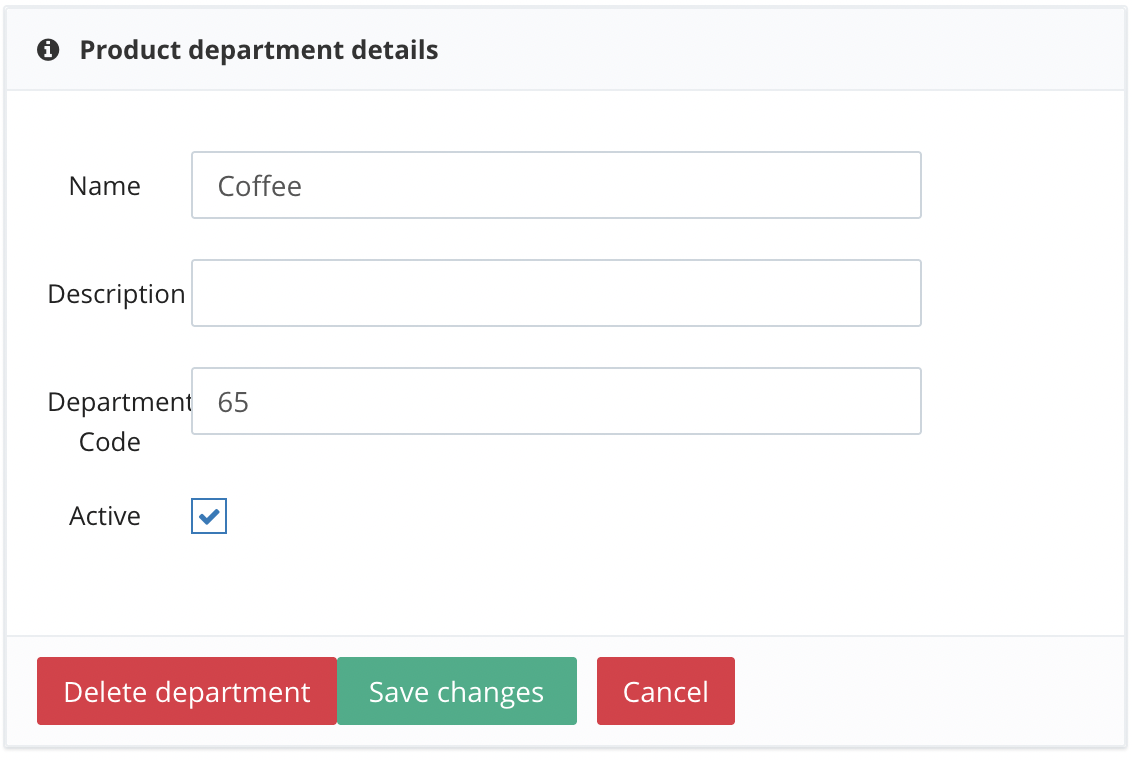
- In the Product department details panel, fill in:
- Name: the display name you'll see in the Dashboard, for example "Snacks".
- Description: optional.
- Department Code: the exact numeric code from your POS, for example
5. - Active: tick this box so the department is in effect.
- Click Save changes.
Once saved, the department appears as an option wherever you can select departments in the Dashboard.
Edit or delete a department
Go to Settings > Departments and select the department from the list. Update the fields and click Save changes, or click Delete department to remove it.
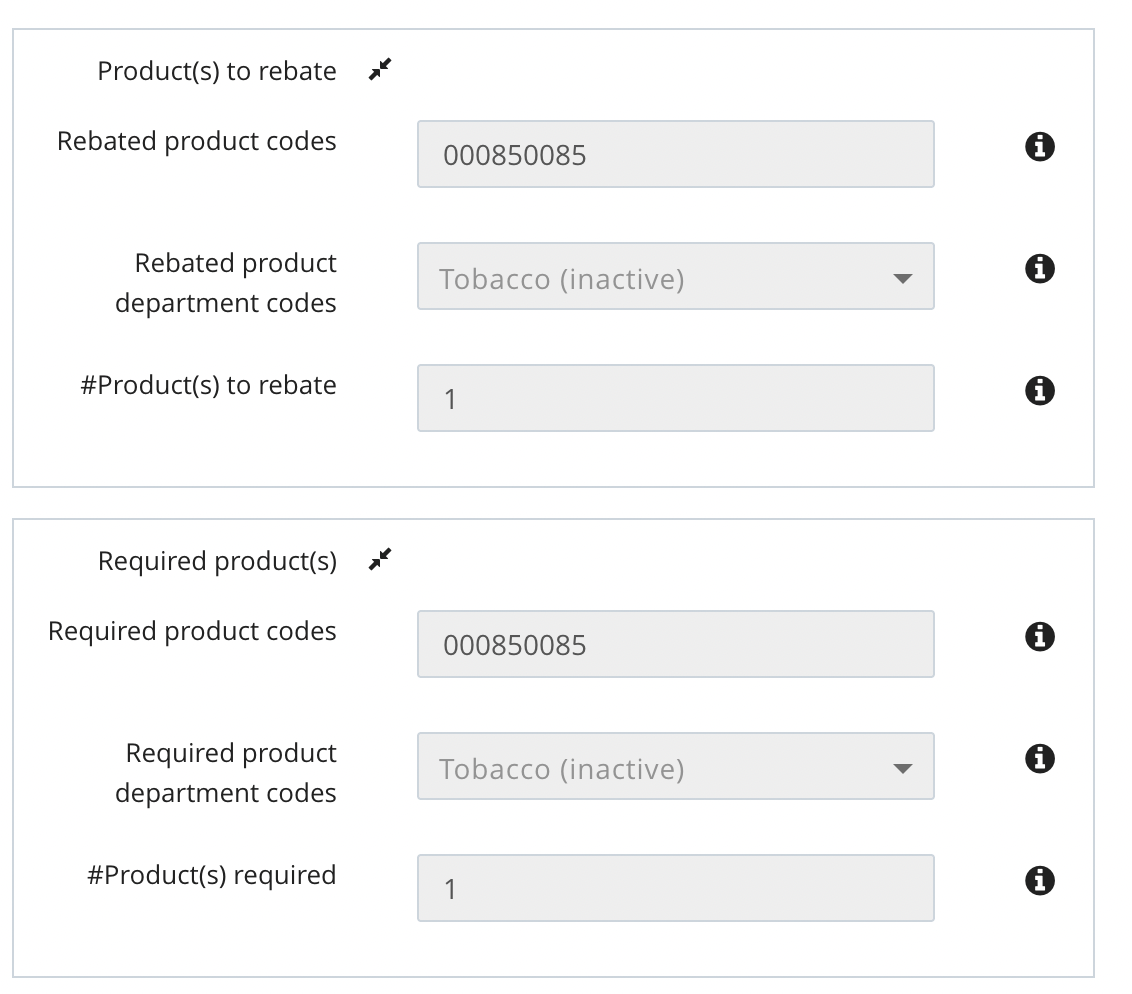
Important: if you set a department to Inactive, it shows in brackets wherever it's used, and discounts for that department will not apply. This is different from product codes. Don't leave a department inactive and assume campaigns that use it will keep running.
Use departments in coupons and stamp cards
When you set up a coupon or stamp card, you can limit eligibility by department instead of, or alongside, specific product codes:
- Rebated product department codes: the discount applies only to items in the selected department.
- Required product department codes: the member must buy from the selected department to qualify for the campaign or to earn stamps.
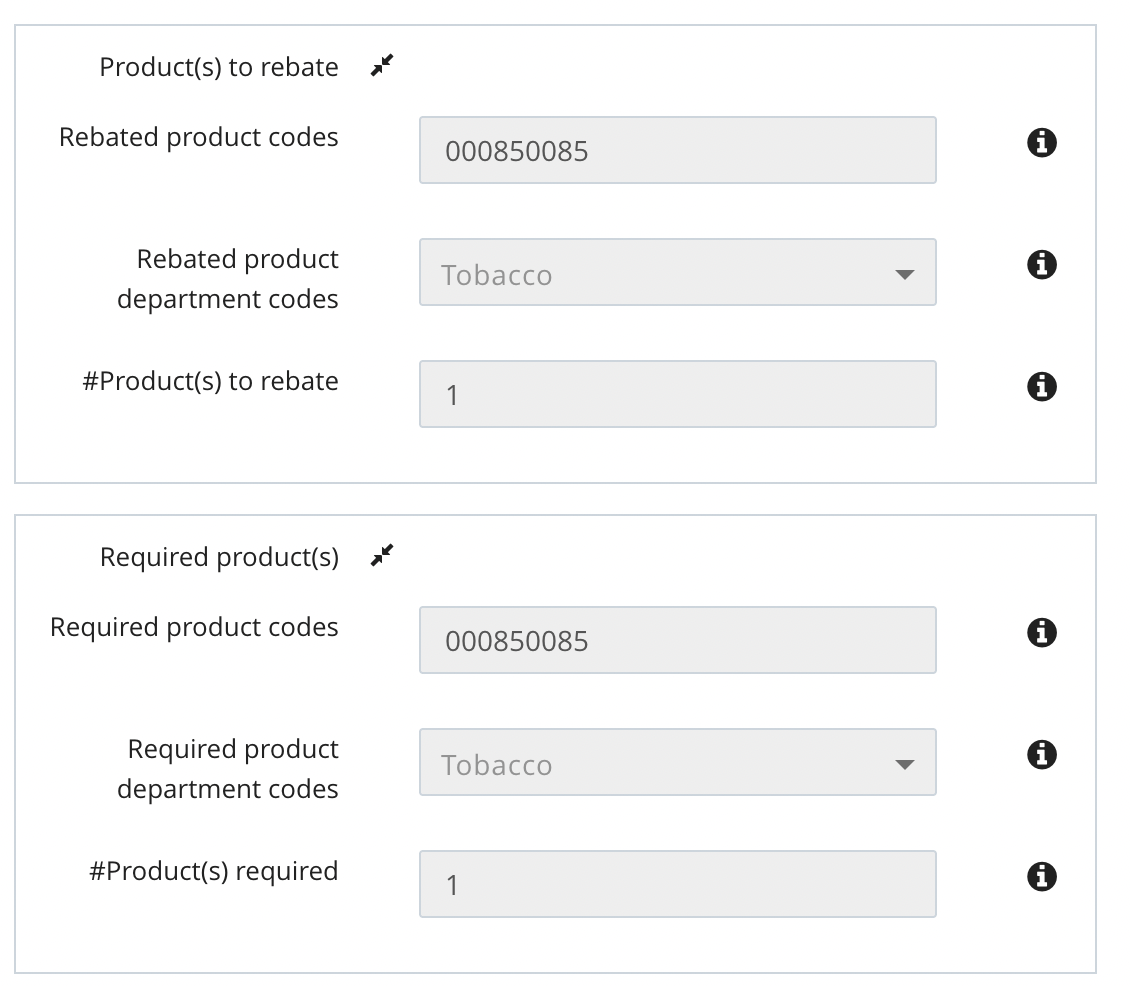
For club cards, department filtering works in both the standard stamp setup and the basket-size stamp setup, which is on the first tab of the campaign builder.
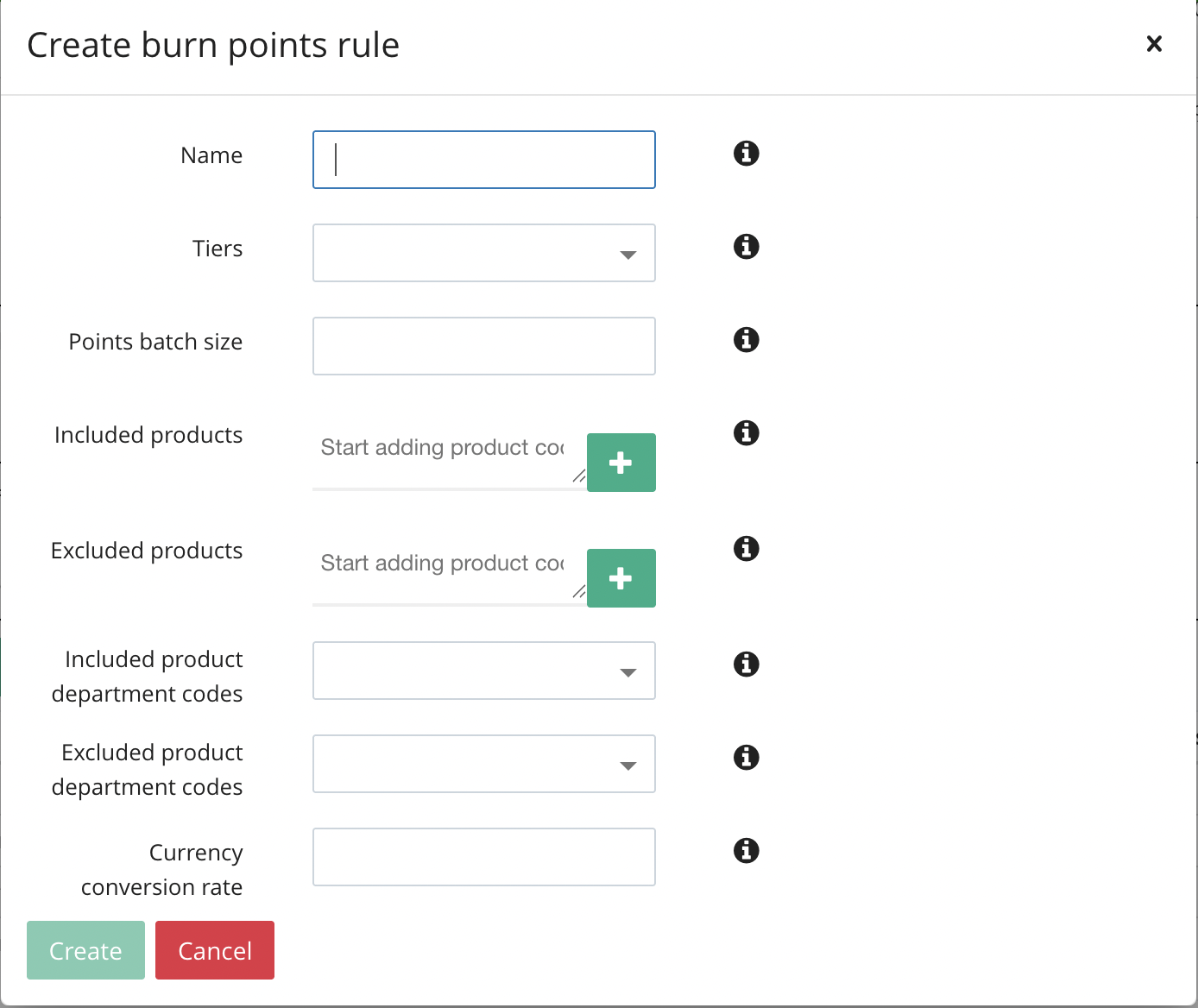
Use departments in points rules
Points rules can also use departments:
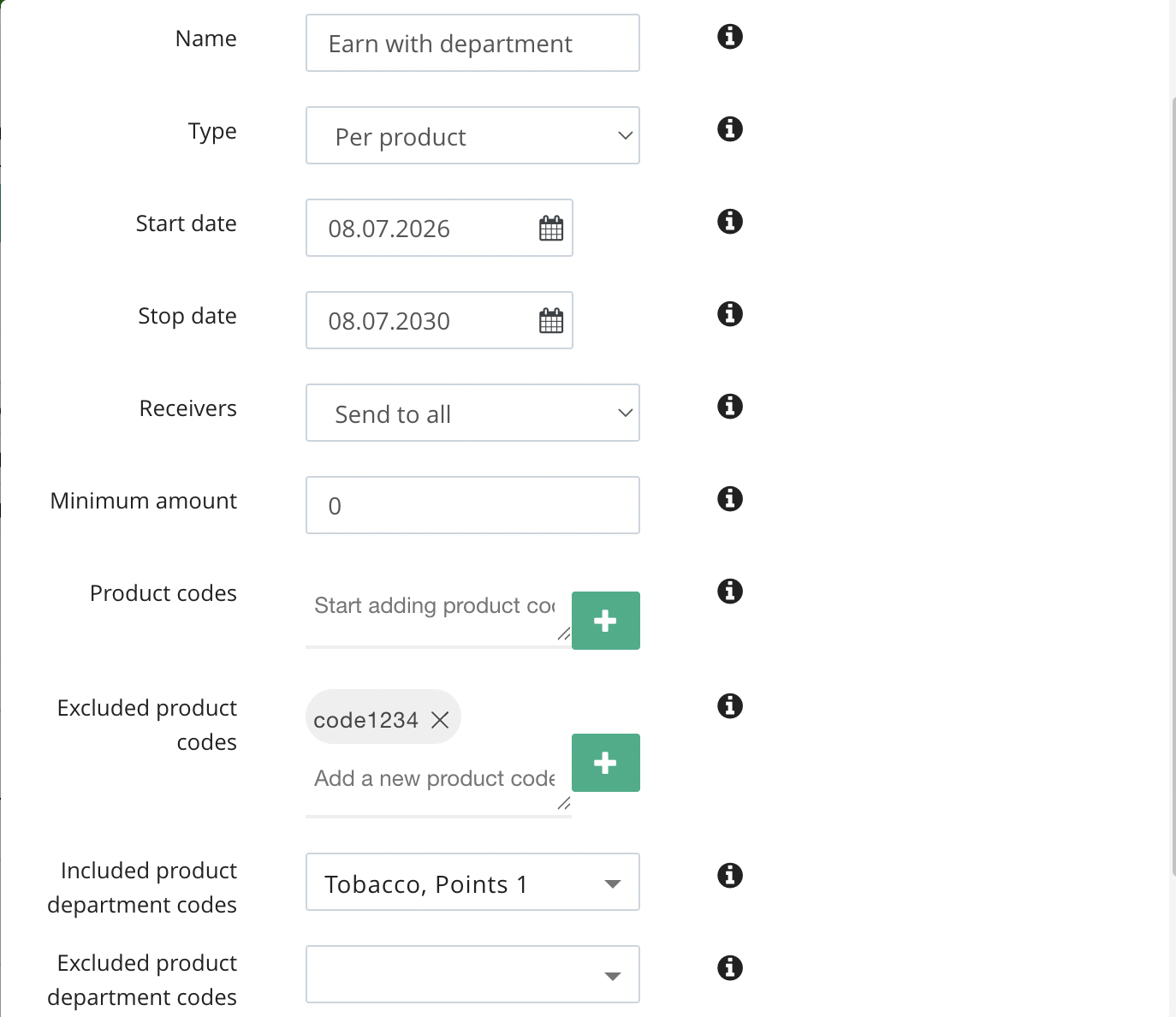
- Earn rules: members earn points only when the transaction contains products from the department you choose. You can include or exclude departments.
- Burn rules: points can be redeemed only against products in the department you choose.
Department filtering in points rules applies to receipt-based rules only.
Use product codes and departments together
You can add both a product code and a department in the same section. They are evaluated as OR: a transaction line qualifies if it matches the product code or the department, not necessarily both. Use one, the other, or both, depending on how precise you need the targeting to be.
Age verification by department
Departments can also drive transaction-based age verification. Instead of relying only on a fixed list of products, Liquid Barcodes looks at a member's purchase history in the departments you choose, such as tobacco.
This is not a self-service setting in the Dashboard. To enable it for your account, contact your Liquid Barcodes account manager.
Troubleshooting
A discount isn't applying to a department. Check the following:
- The department is Active in Settings > Departments.
- The Department Code matches the code in your POS exactly. If it doesn't, transaction lines won't be recognized.
- The campaign isn't for fuel. Fuel doesn't support departments yet, so use product codes.
- The correct department is selected in the campaign or points rule.
Still stuck? Contact your Liquid Barcodes account manager, or send us a message with the campaign name and an example transaction.